Document scanner
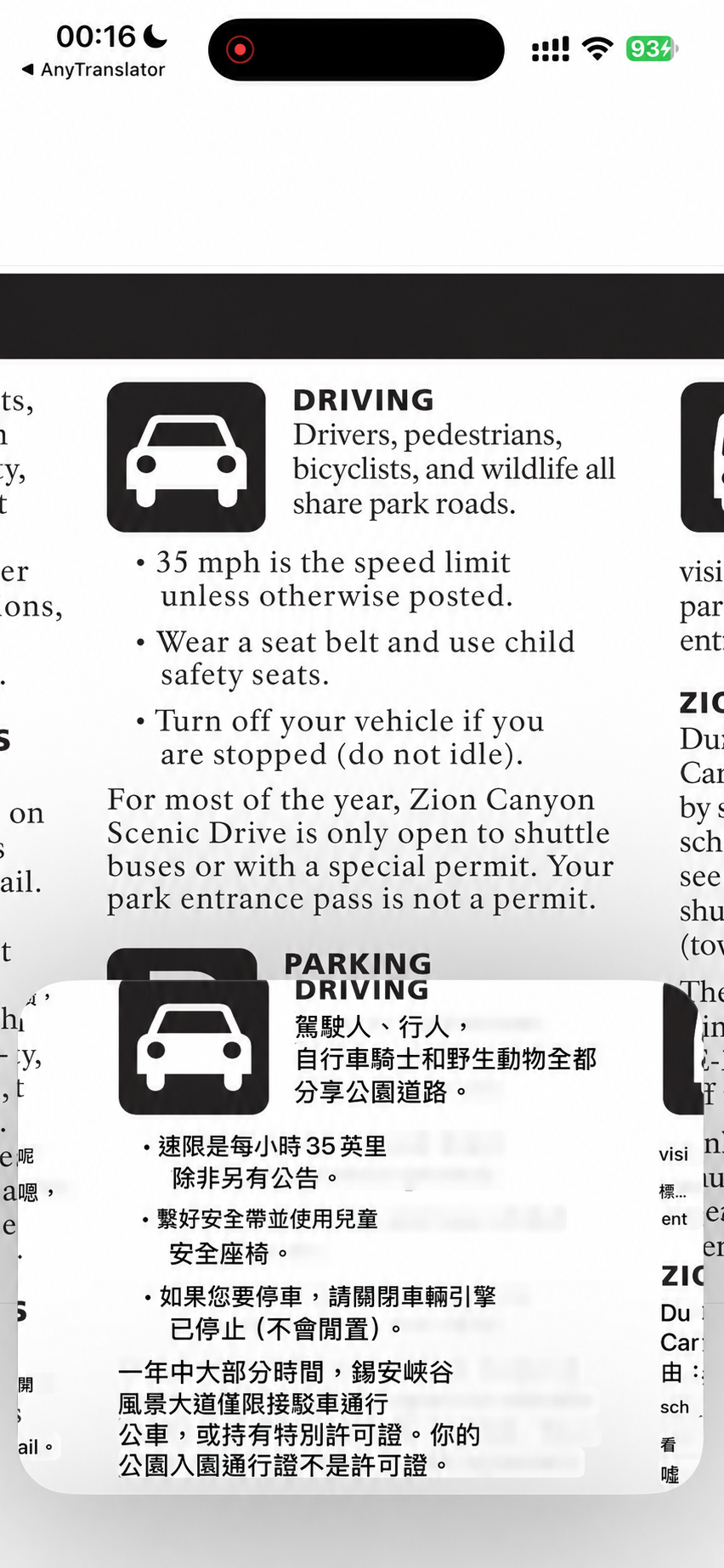
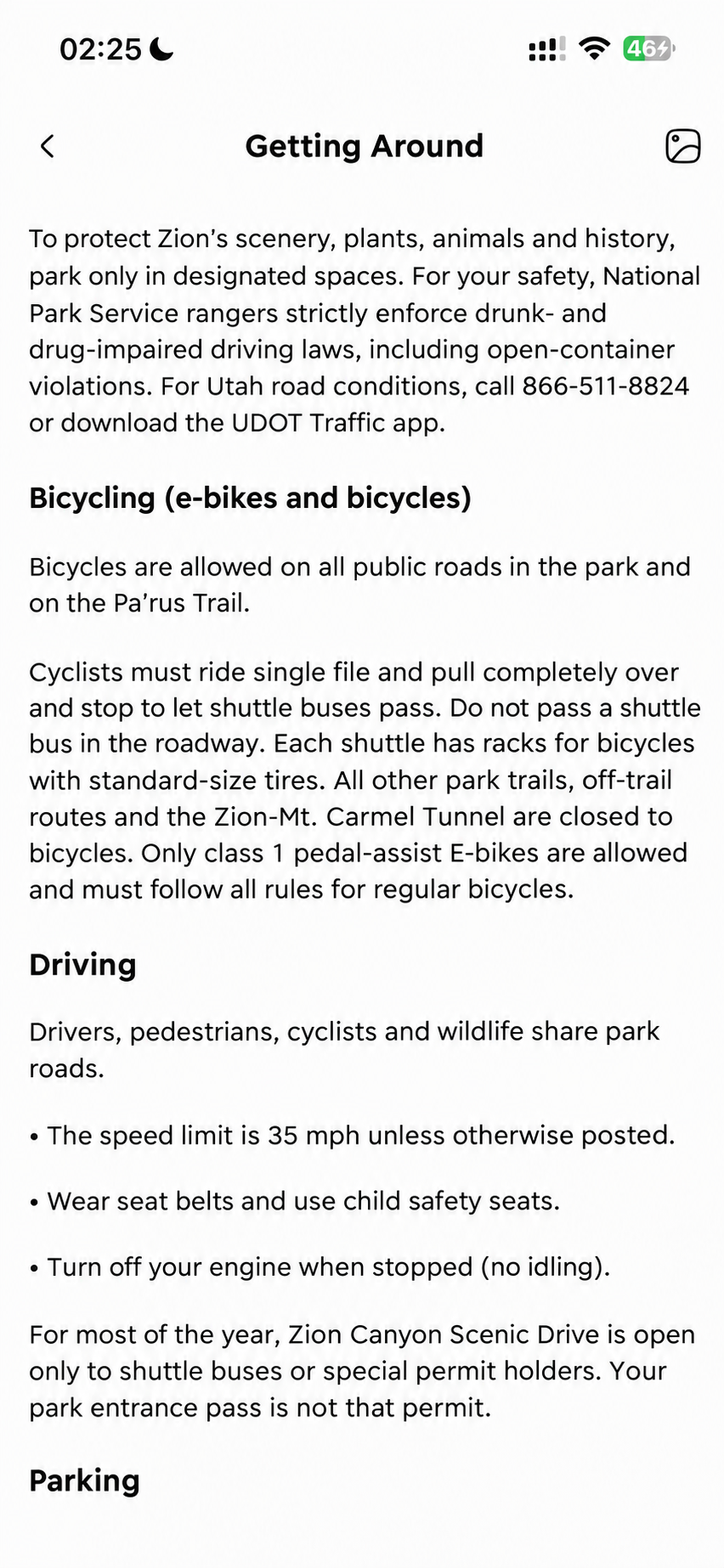
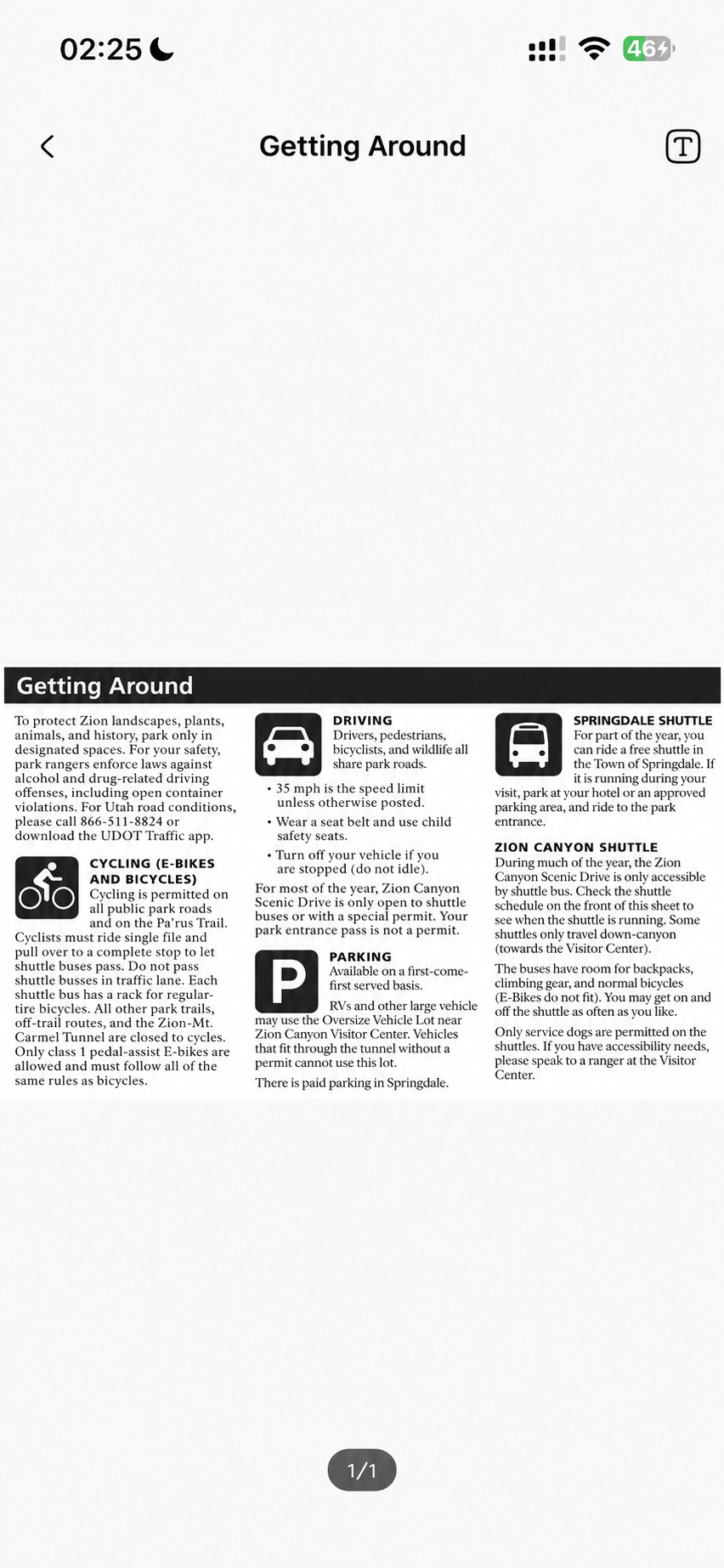
Notices, travel leaflets and multi-page documents become clear headings, paragraphs and lists. Compare source text and images anytime, then find the result in history when you need it again.
- 01Organise photos in page order, keeping headings, paragraphs and lists.
- 02Tap to compare source text and images, so details are easier to check.
- 03Search scan history to find your document again.
Table translation
Even dense tables stay readable. Organise timetables and price lists into rows and columns, scroll across wide tables, and tap to compare source text or images for times, amounts and units.
- 01Keep rows and columns together to compare times and prices.
- 02Scroll wide tables horizontally to read every field and unit.
- 03Tap for source text, compare the image and reopen scans from history.
Start with a real task.
Photograph each page clearly, check the order and submit the batch. Tap text to see the source or return to each page's image. Scroll wide tables sideways and search history by title or content type.
Choose the right type first: Menu for dishes, Table for timetables and price lists in rows and columns, and Document for other pages. Check unclear parts against the image or retake the photo.